Software backup issues often become visible only after an update, reinstall, reset, or migration has already removed something important. Documents may survive while preferences, templates, saved layouts, local databases, plug-ins, or license details disappear. Before making major software changes, identify exactly what the program stores and create a usable backup.
Know What the Application Actually Stores
Not every application’s data is located in the same folder. Some programs keep settings in user-profile directories, cloud accounts, hidden system folders, or separate databases.
Start by checking the software’s own export or backup options. A built-in backup tool often captures information that ordinary file copying can miss.
Users comparing applications through software reference listings should still check each program’s documentation because backup behavior can differ widely between products.
Separate Files From Settings
A common assumption is that backing up documents protects the entire application environment. It doesn’t always work that way.
Your project files might be safe while custom presets, account settings, saved filters, shortcuts, templates, or extensions remain stored elsewhere.
Export What Can Be Exported
If the application includes commands such as Export Settings, Back Up Configuration, or Save Profile, use them before uninstalling or resetting anything.
Some users also explore application discovery resources while comparing software, but replacement tools won’t restore settings that were never backed up from the original program.
| Item | Where It May Live | Backup Approach |
|---|---|---|
| Documents | User folders | Copy to another location |
| Preferences | Profile/config folder | Export or copy settings |
| Templates | App-specific directory | Save separately |
| License details | Account or email | Record credentials |
Test the Backup Before Making Changes
A backup is useful only if it can be opened or restored. Check copied files, exported archives, and cloud-synced folders before beginning a reinstall.
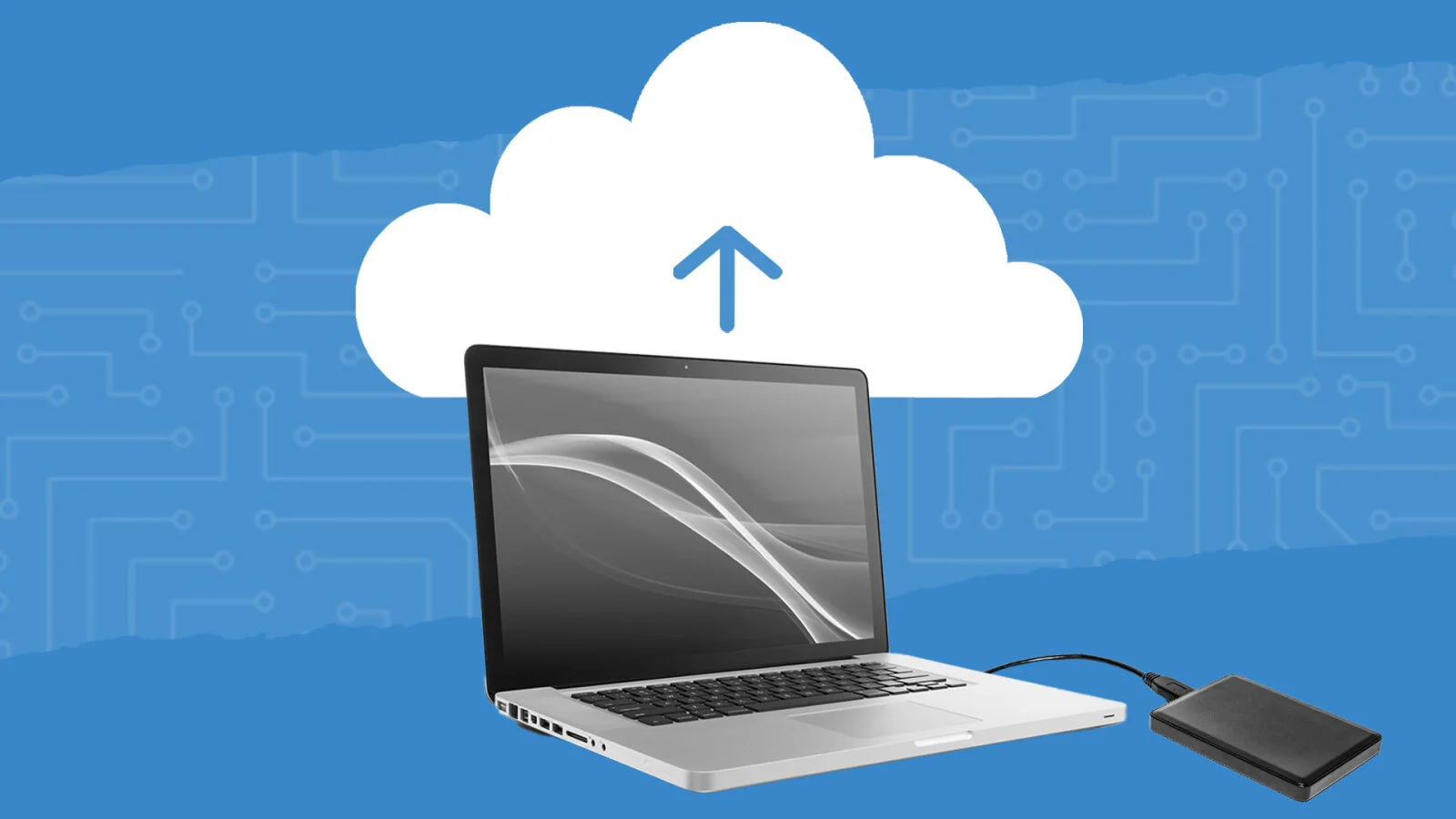
For important projects, keep more than one copy. A local external drive plus a separate cloud copy gives you another option if one location fails.
General technical troubleshooting material can help explain common software problems, but your own restore test is the strongest proof that a backup is usable.
Where Software Backups Often Fail
Blindly copying the program’s installation folder is one of the biggest mistakes. Installed program files are often different from the folders that contain personal settings and working data.
Cloud synchronization can also create false confidence. A folder showing a cloud icon isn’t necessarily fully uploaded, especially if synchronization is paused or storage is full. Confirm that recent files appear from another device or through the provider’s web interface before deleting the original copy.
Frequently Asked Questions
Should I back up software before every update?
Routine minor updates may not require a full manual backup, but important data should already have regular protection. Before major upgrades, operating-system changes, migrations, resets, or reinstalls, making an additional verified backup is sensible.
Does cloud sync count as a backup?
It can protect copies of files, but synchronization and backup are not identical. Deleted or corrupted files may sometimes sync those changes too. Version history or a second independent backup provides stronger protection.
What should I record before reinstalling software?
Save account credentials, license information, plug-in names, custom settings, export files, templates, and the location of important project data. Screenshots of complicated preference screens can also make restoration easier.
Protect the Setup Before You Change It
Major software changes should begin with preservation, not installation. Identify your files, settings, licenses, and custom resources, then confirm that your backup can actually be accessed. Reinstalling a program may take minutes; rebuilding years of carefully adjusted settings can take far longer.